Building MrMatt.io — a series on rebuilding this site from scratch.
- Spec-Driven Development
- The Migration
- The Photography Pipeline (you are here)
- Performance & Security
The problem
I take photos on my phone. I want them on my website. The gap between those two things is enormous.
Publishing a photo on a static site means: transfer the image to a computer, resize it, generate thumbnails, write a markdown file with front matter, commit to git, push, wait for CI. That’s five to ten minutes of mechanical work per photo— enough friction to guarantee I’ll never actually do it.
I wanted to share a photo from my phone and have it show up on the site. So I built that.
The upload tool
The upload tool is a Progressive Web App at /upload/. Vanilla JavaScript, no framework, no build step. It handles five things:
Authentication. GitHub OAuth with a CSRF state parameter. A Cloudflare Function at /api/oauth-exchange handles the token exchange server-side so the client secret never touches the browser. Only my account is authorized.
Share target. This is the key piece. The PWA manifest registers /upload/ as an Android share target. When I share a photo from my phone’s gallery, the service worker intercepts the POST, caches the image, and loads it into the app. It feels native— identical to sharing to any other app on the phone.
EXIF dates. The app parses JPEG EXIF headers in the browser to get the original capture date. It reads the binary APP1 marker, navigates the IFD entries, pulls DateTimeOriginal. This way the published date matches when the photo was actually taken, not when I uploaded it.
Resizing. Canvas element resizes to 1600px max before upload. Keeps the upload small and gives Hugo a reasonable source image. The full-resolution original is still available for download.
AI descriptions. This is the part that makes everything practical.
AI descriptions
After selecting a photo, the app sends a base64 version to a Cloudflare Function at /api/describe-photo. The function calls Claude Haiku’s vision API and gets back structured JSON:
{
  "title": "Morning light on the Chesapeake",
  "alt": "Sunlight reflecting off calm water with a wooden dock",
  "description": "Early morning at the marina, the kind of light that only lasts ten minutes..."
}
Title becomes the heading. Alt text provides accessibility. Description appears in the lightbox. All three are editable before publishing.
The feedback loop is what makes this actually useful. The first description is usually 80% right— good structure, decent alt text, plausible description. But it doesn’t know location names, can’t identify bird species, and sometimes misjudges the mood. I type feedback (“this is at Hart-Miller Island, the bird is a great blue heron”) and hit regenerate. One round usually gets it to 95%.
This is dramatically better than writing descriptions from scratch. The AI handles the baseline and I refine the specifics.
Publishing
When I hit “Upload,” the app talks directly to the GitHub API:
- Gets the SHA of
main’s HEAD - Creates a branch:
photo/{date}-{slug} - Commits the image to
content/photography/{date}-{slug}/photo.jpg - Commits an
index.mdwith YAML front matter - Creates a PR and enables auto-merge
The PR triggers CI. Hugo builds, CSP headers regenerate, and if it passes, the PR merges and Cloudflare deploys. Share photo, review description, publish— about two minutes. Live on the site within five.
No git CLI. No local build. No image editing.
The gallery
The photography section is a responsive CSS grid— two columns on mobile up to eight on wide screens. Each photo is a Hugo page bundle: a directory with photo.jpg and index.md.
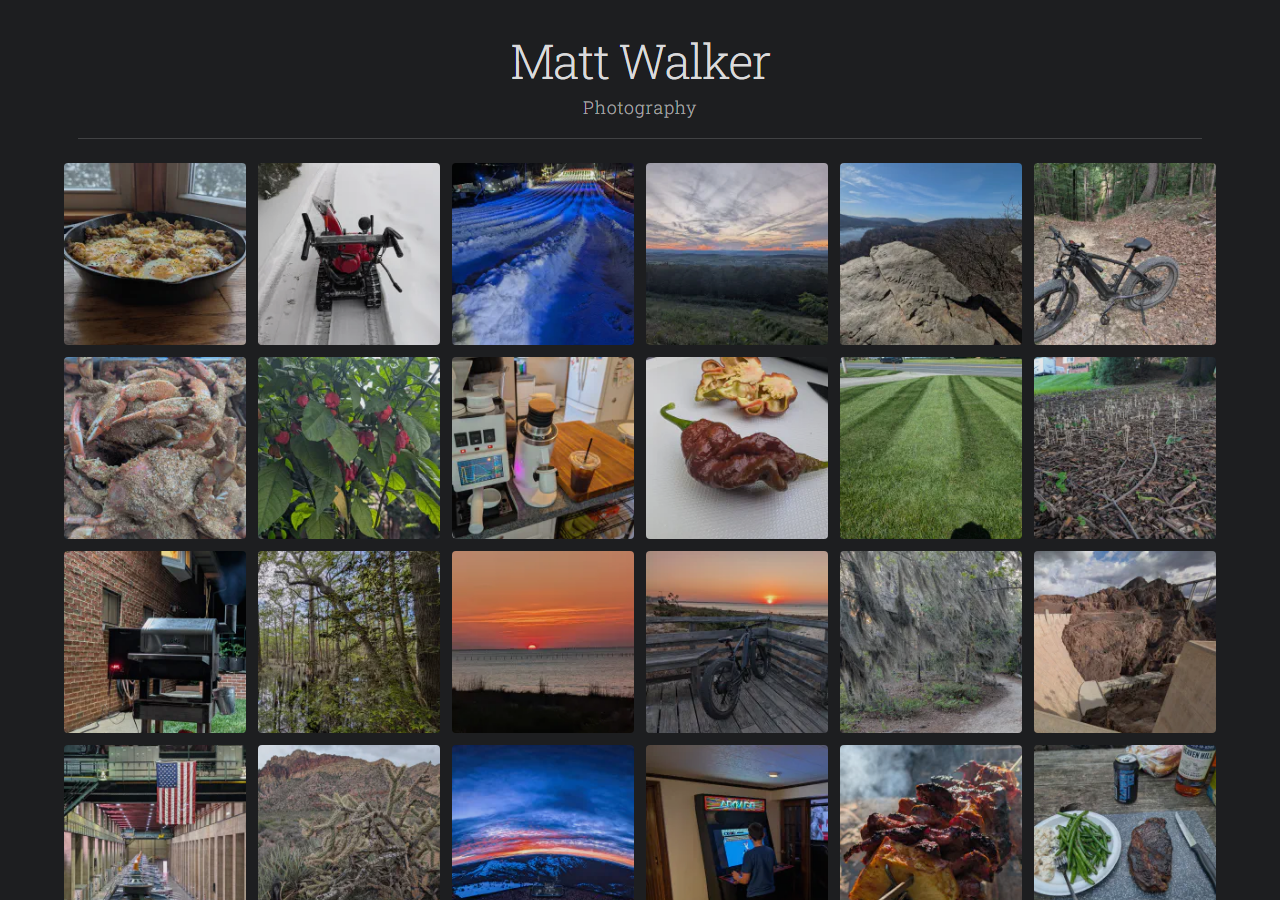
Hugo’s image pipeline generates WebP thumbnails at 200px, 300px, and 450px for srcset, plus a 1600px version for the lightbox. All images are content-addressed with immutable cache headers. The source JPEG is available as a full-res download, watermarked with the site URL using Hugo’s images.Text filter.
The gallery doesn’t render everything at once. An IntersectionObserver reveals photos in batches of 16 as you scroll, with a 400px look-ahead margin. Fallback shows everything immediately if IntersectionObserver isn’t supported.
The lightbox
This is the most complex client-side code on the site and it’s still under 300 lines.
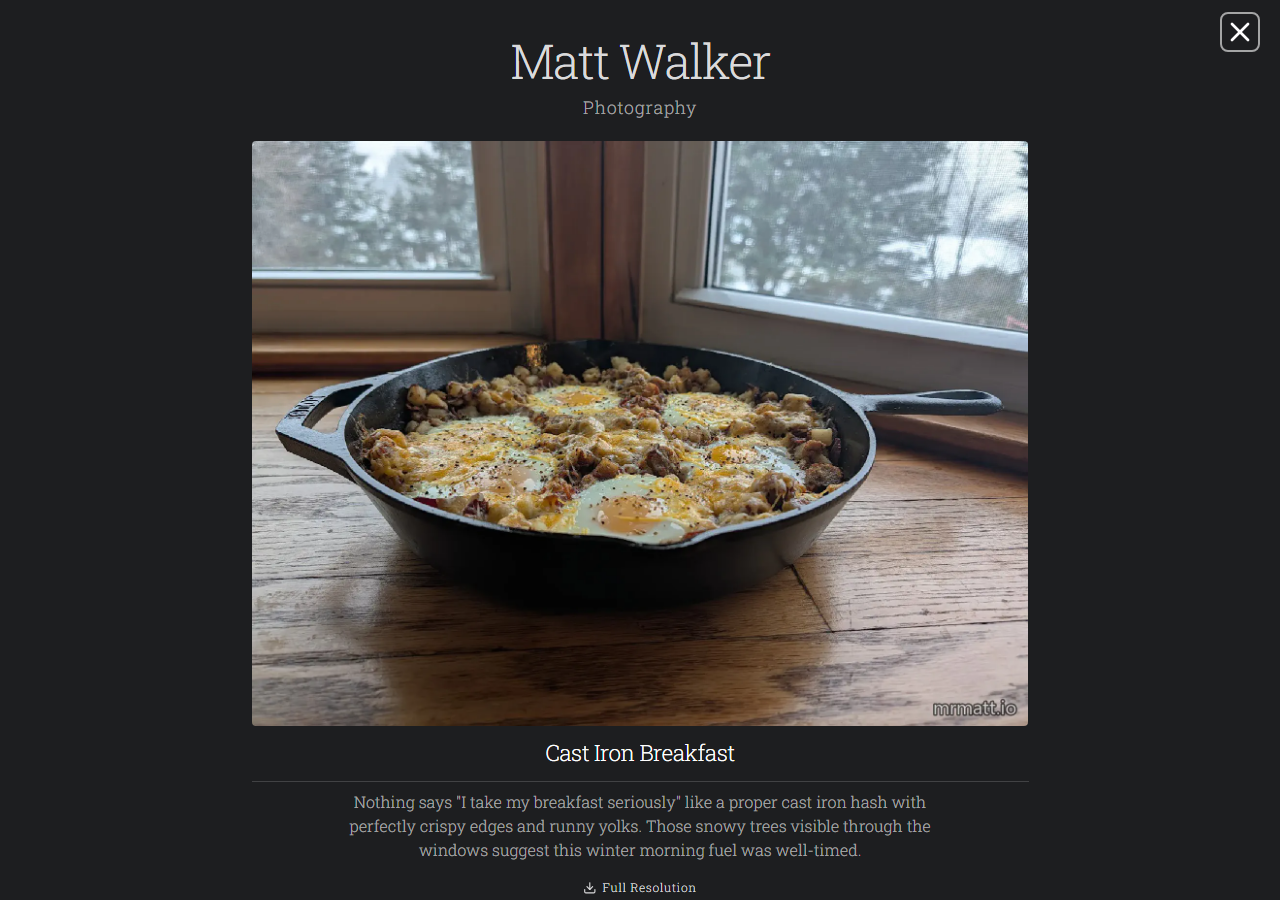
- Keyboard nav— arrows to browse, Escape to close
- Touch swipe— 50px+ horizontal swipe triggers navigation
- Focus trapping— Tab cycles through lightbox elements only
- ARIA—
role="dialog",aria-modal="true", labeled buttons - Deep linking— photo slug in the URL hash, shareable links
- Reduced motion— skips the 150ms fade if the OS prefers it
- Preloading— next image loads before display
The gallery and lightbox both adapt to PaperMod’s dark mode toggle.
Lessons
Share targets work. The Web Share Target API is what makes this whole pipeline viable. Without it I’d need a native app. With it, sharing a photo to the upload tool is identical to sharing to any other app. A few lines in the manifest and a service worker handler— that’s it.
EXIF parsing is tedious. Binary format from the 90s. Byte offsets, endianness, IFD chains. Not hard, but the kind of code you write once and never want to touch again. A library would have been fine, but I wanted zero npm dependencies.
AI feedback > one-shot. The feedback loop is what turns AI description from a novelty into something I actually use. First pass gets the structure right. One round of “this is at Hammerman Beach, tone should be more contemplative” gets it the rest of the way.
Hugo’s image API has opinions. .Fill crops to exact dimensions. .Fit scales to fit within dimensions. .Resize scales to a width or height. For square grid thumbnails, .Fill. For the lightbox display, .Fit. Getting these mixed up produces stretched images or unexpected crops.
Next: Performance & Security— fonts, CSP, headers, accessibility, and caching.